
More Guides

Explore a curated collection of expert guides, tutorials, and how-to resources at Digiwirex. Find easy-to-follow, up-to-date content to help you learn, implement, and master digital skills and tools.

shopify explained

Shopify Explained: What It Is, How It Works & Why It’s Best for E-Commerce

The global e-commerce industry is expanding at an unprecedented rate. Businesses are rapidly shifting from traditional retail models to digital storefronts. In this transformation, one platform has consistently emerged as a market leader: Shopify. But what makes Shopify so powerful?Why do startups, small businesses, and even enterprise brands rely on it?And how does it actually work? This comprehensive guide answers those questions in detail. Top Web Dev AgencyWhat Is Shopify Shopify is a cloud-based e-commerce website builder that enables businesses to create, manage, and scale online stores without complex technical infrastructure. It is an all-in-one commerce solution that includes: Website hosting Store design tools Secure checkout system Inventory management Order processing Payment gateway integration Marketing and analytics tools Unlike open-source platforms, Shopify handles backend management. You focus on products and growth. Shopify Explained The Evolution of Shopify in E-Commerce Founded in 2006, Shopify began as a solution for merchants who wanted a simpler way to sell online. Over time, it evolved into a global commerce ecosystem supporting millions of businesses. Today, Shopify powers: Direct-to-consumer brands Dropshipping stores Subscription businesses Enterprise retail brands Offline stores using POS systems Its success comes from continuous innovation, scalability, and ecosystem expansion. How Shopify Works (Complete Breakdown) Understanding how Shopify works is essential before choosing it. 1. Account Setup You create an account and select a pricing plan based on your business size and sales volume. 2. Store Customization Shopify offers professionally designed themes. You can: Customize layout Modify branding Edit homepage sections Adjust typography No coding required for basic use. 3. Product Upload You add: Product titles SEO-optimized descriptions High-resolution images Pricing and variants SKU numbers Inventory levels 4. Payment Gateway Integration Shopify supports multiple global and local payment processors, reducing checkout friction. 5. Shipping Configuration Set shipping rates, delivery zones, and real-time carrier integrations. 6. Store Launch Connect your domain and publish. From that point onward, Shopify manages: Hosting Security Updates Performance optimization Core Shopify Features That Drive Growth 1. Secure Cloud Infrastructure Security includes: SSL encryption PCI DSS compliance Fraud analysis tools Automated updates This reduces cybersecurity risks. 2. Built-In SEO Optimization   Shopify supports: Editable meta titles and descriptions Clean URL structure Automatic XML sitemap Canonical tags Mobile-first indexing compatibility SEO foundation is strong out of the box. 3. Advanced Inventory Management Merchants can: Track stock levels Manage product variants Automate low-stock alerts Handle bulk imports This improves operational efficiency. 4. App Ecosystem The Shopify App Store provides thousands of integrations for: Email marketing automation Conversion rate optimization Analytics Dropshipping Subscription billing CRM systems This extensibility is one of Shopify’s strongest advantages. 5. Multi-Channel Commerce Sell through: Online store Social media platforms Marketplaces Physical retail via POS Centralized inventory sync ensures operational consistency. Why Shopify Is Best for E-Commerce   1. Ease of Use Beginner-friendly dashboard simplifies store setup. 2. Scalability Start small. Scale to enterprise level without changing platforms. 3. Performance & Speed Fast loading pages improve: SEO rankings User experience Conversion rates 4. Reliable Support 24/7 customer support reduces downtime risks. 5. Business Analytics Track: Revenue Conversion rates Traffic sources Customer behavior Data-driven decisions become easier. Shopify Pricing Structure Shopify operates on a monthly subscription model. Plans differ based on: Reporting capabilities Staff accounts Advanced automation Transaction fees Additional costs may include: Premium themes Paid apps Custom domains Compared to custom development, pricing remains predictable. Shopify for Beginners Shopify removes technical barriers: No server management No coding required initially Guided onboarding This makes it ideal for first-time entrepreneurs. Shopify for Growing Brands As your traffic and revenue increase, Shopify supports: High-volume transactions Multi-currency selling International shipping Enterprise integrations Scalability without migration is a major benefit. Pros and Cons of Shopify Advantages Secure infrastructure Scalable architecture Beginner-friendly interface Large ecosystem Reliable performance Limitations Recurring subscription App dependency can increase cost Advanced customization may require Liquid coding Shopify vs Other Platforms Shopify vs WooCommerce WooCommerce requires: Separate hosting Security setup Plugin management Shopify centralizes everything. Shopify vs Custom Development Custom sites require: High upfront cost Developer dependency Ongoing maintenance Shopify reduces complexity while maintaining flexibility. SEO Strategy for Shopify Stores To maximize organic visibility: Perform keyword research before listing products Optimize product titles using search intent Write unique product descriptions Improve internal linking Publish informational blog content Optimize images with alt text Monitor Core Web Vitals SEO success depends on strategy, not just platform. Top 10 AI SEO Free Apps for Shopify Stores in 2026 Cashfree Payment Gateway India – Lowest Pricing in 2026 How to Get Razorpay Checkout for Your Business Without a GST Number (2026 Guide) Final Verdict If you want a scalable, secure, and user-friendly e-commerce solution, Shopify offers one of the most complete ecosystems available. It simplifies infrastructure while enabling serious growth. For businesses focused on long-term digital expansion, Shopify provides a powerful foundation.

Shopify Explained: What It Is, How It Works & Why It’s Best for E-Commerce Read Post »

AI Tools to Boost

How to Use AI Tools to Boost Your Daily Productivity (Step-by-Step Guide with Real Experience

Artificial Intelligence is transforming the way professionals manage time, tasks, communication, and decision-making. Instead of working longer hours, smart professionals are building AI-powered systems that reduce manual effort and increase output quality. Introduction: Why AI Is a Productivity Multiplier AI tools reduce cognitive overload by automating repetitive tasks, accelerating structured work, and assisting with research and communication. Rather than replacing human intelligence, AI enhances execution speed and clarity. Professionals using structured AI systems often experience: 25–40% faster workflow completion 30–50% reduction in repetitive admin work Better focus during deep work Higher quality deliverables Step 1: Identify Your Biggest Productivity Bottleneck Before implementing AI, diagnose where time is lost. Common bottlenecks include: Email overload Poor scheduling Manual data entry Slow content creation Disorganized research Real Experience Example A freelance consultant tracked time for 7 days and discovered: 2 hours daily on email 1 hour on repetitive admin tasks 3 hours writing content Instead of adopting many tools at once, the consultant targeted email and writing first — resulting in measurable improvements within 3 weeks. Step 2: Use AI Scheduling to Structure Your Day AI calendar tools optimize time blocking automatically. Tools You Can Use Motion Reclaim.ai Clockwise Step-by-Step Implementation List weekly deliverables. Assign realistic time estimates. Sync tasks with AI calendar. Allow automated scheduling. Review every morning. Real Impact After implementing AI scheduling, meeting conflicts reduced and 5 hours per week were recovered. Step 3: Automate Repetitive Workflows Automation saves time and mental energy. Automation Platforms Zapier Make Examples of Automation Auto-save email attachments Add leads to CRM automatically Trigger internal notifications Sync online orders with spreadsheets Step-by-Step Setup Select trigger (e.g., new form submission). Choose action (add contact to CRM). Test automation. Activate workflow. Real Experience Result Automating five workflows saved 45 minutes daily. Step 4: Accelerate Writing with AI Assistance Writing tasks often consume large portions of the workday. Recommended Tools ChatGPT Grammarly Jasper Writing Workflow Define clear objective. Generate structured outline. Expand each section. Add personal insights. Edit and verify facts. Real Experience Insight Content creation time reduced by 50% after adopting AI-assisted outlining. Step 5: Manage Email with AI Filtering Email overload damages focus. AI Email Tools Superhuman SaneBox Step-by-Step Email Optimization Enable AI inbox prioritization. Auto-filter newsletters. Use suggested replies. Schedule fixed email review times. Real Experience Result Inbox time dropped from 2 hours to under 1 hour daily. Step 6: Speed Up Research Using AI AI research assistants condense information quickly. Research Tools Perplexity AI Elicit Research Framework Ask detailed questions. Request summaries. Review references. Cross-check important data. Real Experience Result Research time per article reduced from 3 hours to 1 hour. Step 7: Improve Focus with AI Tools Deep work sessions increase high-value output. Focus Tools Brain.fm Freedom Focus Routine Schedule 60–90 minute session. Activate website blocker. Play focus music. Remove phone distractions. Consistent deep work dramatically improves productivity. Step 8: Use AI for Data Analysis and Reporting AI simplifies analytics tasks. You can: Summarize weekly performance Identify trends Generate draft reports Detect anomalies This accelerates strategic decision-making. Daily AI Productivity System Morning (10–15 Minutes) Review AI-scheduled tasks. Identify top three priorities. Mid-Morning Deep Work Use AI drafting tools. Automate repetitive tasks. Block distractions. Afternoon Process email in fixed blocks. Review analytics. Evening Reflection Ask AI: “Summarize completed tasks.” “Suggest improvements for tomorrow.” SKU Generator: https://digiwirex.com/sku-generator/   Frequently Asked Questions (FAQ) 1. How much productivity improvement can I expect? Most users see 20–40% improvement within 4–6 weeks of structured use. 2. Are AI tools safe for business data? Use reputable platforms and review privacy policies before uploading sensitive data. 3. Should I implement multiple tools at once? Start with one bottleneck area and expand gradually. 4. Can AI replace human creativity? No. AI supports creativity but cannot replace strategic thinking. 5. What is the best AI tool to start with? Begin with scheduling or writing assistance for quick visible results.

How to Use AI Tools to Boost Your Daily Productivity (Step-by-Step Guide with Real Experience Read Post »

How to Use Password Managers for Better Security

How to Use Password Managers for Better Security

In 2026, managing passwords securely is no longer optional — it is essential. Whether you run a blog, manage client websites, operate an eCommerce store, or simply use social media and banking apps, your online safety depends on how you handle passwords. Weak passwords, reused credentials, and storing logins in browsers expose you to phishing attacks, credential stuffing, and data breaches. The most practical and scalable solution is learning how to use a password manager properly. What Is a Password Manager? A password manager is a secure software application that stores your login credentials in an encrypted vault. Instead of memorizing dozens of complex passwords, you only need to remember one master password. Some widely used password managers include: Bitwarden 1Password Dashlane NordPass LastPass These tools use strong encryption standards and a zero-knowledge security model, meaning even the provider cannot read your stored passwords. Why Using a Password Manager Is Important in 2026 1. Password Reuse Is Dangerous If you use the same password on multiple websites and one site gets hacked, attackers will test that same password across different platforms. This automated attack is called credential stuffing. 2. Human Memory Cannot Handle Secure Passwords A secure password should: Be at least 16–20 characters Include uppercase, lowercase, numbers, and symbols Be completely random Trying to remember dozens of such passwords manually is unrealistic. Step-by-Step Guide: How to Use a Password Manager Properly Step 1: Choose a Trusted Password Manager Look for: AES-256 encryption Zero-knowledge architecture Independent security audits Multi-device sync For example, Bitwarden is known for open-source transparency, while 1Password offers advanced business-level controls. Step 2: Install on All Devices Install on: Desktop Smartphone Browser extensions This ensures consistent protection across devices. Step 3: Create a Strong Master Password Your master password protects your entire vault. Best practice: Minimum 16 characters Use passphrase method Avoid personal information Example format:Silver!River#Mountain2026Cloud Step 4: Enable Two-Factor Authentication (2FA) Enable 2FA for: Password manager Email Banking apps This adds an extra verification layer. Step 5: Import and Audit Existing Passwords Import passwords from: Browser CSV file Other password managers Then run a security audit to detect weak and reused passwords. Step 6: Generate Unique Passwords Use the built-in generator: 20+ characters Symbols and numbers Completely random Never reuse passwords again. Step 7: Organize Your Vault Create folders: Work Finance Social Media Hosting Store secure notes for licenses and Wi-Fi passwords. Real Experience: Before and After Using a Password Manager Before implementation: Reused passwords Frequent resets Security anxiety After implementation: Unique strong passwords Faster login Reduced stress Improved digital confidence The biggest benefit was peace of mind. Advanced Security Tips Use Hardware Authentication Keys For higher security, integrate a physical security key. Enable Breach Monitoring Receive alerts if your credentials appear in leaked databases. Common Mistakes to Avoid Weak master password Not enabling 2FA Ignoring alerts Saving master password digitally Sharing credentials insecurely Top 10+ Free VPN Services for Safe and Private Browsing Free VPN with Indian Server – Complete & Practical Guide for Indian Users Frequently Asked Questions (FAQs) 1. Can password managers be hacked? They are highly secure when configured properly with strong master passwords and 2FA. 2. What if I forget my master password? Store recovery codes securely offline. 3. Are free password managers safe? Yes, reputable providers offer secure free versions. 4. Is storing banking passwords safe? Yes, safer than reuse or writing them down. 5. Should businesses use password managers? Absolutely. It improves team credential security. Final Thoughts Learning how to use a password manager for better security is one of the smartest digital protection steps in 2026. It helps you: Eliminate password reuse Strengthen encryption habits Reduce phishing risk Save time Improve cybersecurity confidence Strong digital security begins with responsible credential management — and responsible credential management begins with using a password manager correctly.

How to Use Password Managers for Better Security Read Post »

Free Online SKU Generator

Top Free Online SKU Generator Websites (2026)

If you run an eCommerce store, using a Free Online SKU Generator can simplify product organization, improve inventory accuracy, and reduce human errors. Instead of manually creating SKU codes, a professional Free Online SKU Generator helps you build structured, scalable, and searchable product identifiers in seconds. What Is a SKU Generator? A SKU (Stock Keeping Unit) is a unique internal code assigned to each product variation. A SKU generator automates the creation of these structured identifiers. Instead of using inconsistent labels like: shirtblue01 item45 productA1 A structured SKU format looks like: BRD-TS-BLU-M-001 Where: BRD = Brand TS = T-Shirt BLU = Blue M = Medium 001 = Sequence This structure allows instant product recognition. Why SKU Structure Is Critical for eCommerce Growth As your product catalog grows, disorganized SKUs cause: Duplicate listings Shipping errors Confusing reporting Inventory mismatches Structured SKUs improve: ✔ Inventory tracking✔ Faster picking and packing✔ Sales reporting clarity✔ Multi-channel consistency Step-by-Step Guide to Creating a Professional SKU System Step 1: Define Your SKU Formula Before using any tool, decide your format. Professional format example: BRAND-CATEGORY-COLOR-SIZE-SEQUENCE Example: NX-TS-BLK-M-001 Keep segments short, meaningful, and consistent. Step 2: Standardize Abbreviations Create a reference sheet: BLK = Black BLU = Blue RED = Red SML = Small MED = Medium LRG = Large Never mix formats like BLK and BLACK. Step 3: Use a Free Online SKU Generator Using automation prevents manual errors and speeds up creation. 1️⃣ DigiWirex SKU Generator (Top Recommended) Website: https://digiwirex.com/sku-generator/ Why it stands out: 100% free Custom prefix control Bulk SKU generation Clean interface Structured formatting support Ideal for startups and scaling eCommerce brands. 2️⃣ CodeBeautify SKU Generator Website: https://codebeautify.org/sku-generator Simple tool for prefix-number generation. 3️⃣ Shopify Free SKU Generator Tool Website: https://www.shopify.in/tools/sku-generator Best suited for Shopify sellers needing quick SKU suggestions. 4️⃣ GenerateSKU Website: https://generatesku.com/ Lightweight and simple SKU creator. 5️⃣ Inventron SKU Generator Website: https://inventron.co/tools/sku Offers structured category segmentation. Step 4: Generate SKUs for Variations If you sell 3 colors and 3 sizes, you need 9 SKUs. Example: NX-TS-BLK-S-001 NX-TS-BLK-M-002 NX-TS-BLK-L-003 NX-TS-RED-S-004 NX-TS-RED-M-005 NX-TS-RED-L-006 Automation ensures no duplication. Step 5: Upload SKUs to Your Store Integrate into: Shopify WooCommerce Amazon ERP systems Ensure the SKU structure remains consistent everywhere. Real Experience: Operational Impact of Structured SKUs From practical observation in growing online stores, unstructured SKUs become problematic after 100+ products. Initial random codes like: BlueShirt1 TSM01 shirtRed Caused: Picking errors Reporting confusion Duplicate listings After restructuring into: BRD-TS-BLU-M-001 Results included: Reduced fulfillment errors Faster warehouse operations Clear reporting by category Easier stock forecasting The improvement was operationally measurable. Common SKU Mistakes to Avoid ❌ Changing format midway❌ Overcomplicating segments❌ Using full product names❌ Adding special characters❌ Ignoring scalability Consistency is more important than complexity. Who Should Use a SKU Generator? eCommerce entrepreneurs Dropshippers Amazon sellers Shopify store owners Retail managers Warehouse operators Wholesale distributors If you manage variations, structured SKUs are essential. Frequently Asked Questions 1. What is the ideal SKU length? 8–12 characters is recommended for clarity. 2. Can I use the same SKU on multiple platforms? Yes. Maintain consistency across systems. 3. Are free SKU generators reliable? Yes, if they do not store sensitive data. 4. Should SKUs include product names? No. Use standardized abbreviations instead. 5. Can structured SKUs improve efficiency? Yes. They reduce errors and enhance reporting. Final Conclusion A structured SKU system is foundational for scalable inventory management. As product catalogs grow, random identifiers become operational liabilities. Using a free online SKU generator ensures consistency, accuracy, and long-term efficiency. Among the available options, DigiWirex provides the best balance of flexibility, simplicity, and true free access. Implementing a professional SKU structure today will prepare your business for organized growth tomorrow.

Top Free Online SKU Generator Websites (2026) Read Post »

android

How to Speed Up Your Android or iPhone Without Paying (Complete Step-by-Step Guide)

Smartphones are powerful devices, but over time they often slow down. Apps take longer to open, scrolling becomes less smooth, and battery life drops. Many users assume they need to buy a new device or install paid cleaning apps. The truth is that both Android and iOS include built-in performance management systems. When optimized correctly, most smartphones regain noticeable speed without spending money. This guide provides step-by-step optimization, real-world experience insights, and long-term maintenance strategies. Why Phones Slow Down Over Time Smartphones slow down mainly because of storage pressure, background processes, and accumulated cache files. When storage is nearly full, the system struggles to manage temporary files. Background apps consume RAM and CPU cycles. Over months, unused data builds up silently. Part 1: How to Speed Up Your Android Phone Without Paying If you use Android, follow these steps in order for best results. Step 1: Free Up Storage (Biggest Performance Boost) Go to: Settings → Storage Keep at least 20–25% storage free. Delete: Large videos Duplicate photos Old downloads Unused apps Messaging media files Real Experience: On a 64GB Android phone used for 3 years, freeing 10GB instantly improved app launch speed and reduced typing lag. Step 2: Clear App Cache Steps: Settings Apps Select App Storage Clear Cache Focus on browsers and social media apps. Real Experience: Clearing Chrome and Instagram cache reduced scrolling delay significantly. Step 3: Reduce Animation Scale (Advanced Tip) Enable Developer Options: Tap Build Number 7 times Open Developer Settings Set animation scales to 0.5x. This improves perceived speed dramatically. Real Experience: Navigation felt noticeably faster, especially when switching between apps. Step 4: Restrict Background Apps Settings → Battery → Background Restrictions Limit apps like: Shopping apps Travel apps Food delivery apps Real Experience: After restricting 6 background-heavy apps, standby battery life improved and multitasking became smoother. Step 5: Disable Unnecessary Pre-Installed Apps Many Android phones come with unused system apps. Disable them via: Settings → Apps → Disable This reduces background RAM usage. Part 2: How to Speed Up Your iPhone Without Paying If you use iOS, optimization focuses on storage and background activity. Step 1: Check iPhone Storage Go to: Settings → General → iPhone Storage Keep at least 15–20% storage free. Delete: Large videos Old attachments Unused apps Real Experience: On a 4-year-old iPhone, removing 12GB of unused videos eliminated keyboard lag. Step 2: Enable Offload Unused Apps Settings → App Store → Offload Unused Apps This keeps data but removes unused app files. Step 3: Disable Background App Refresh Settings → General → Background App Refresh Turn off for non-essential apps. Real Experience: Disabling background refresh improved smoothness during multitasking. Step 4: Reduce Motion Effects Settings → Accessibility → Motion → Reduce Motion ON This lowers animation rendering load. Step 5: Clear Safari Browser Data Settings → Safari → Clear History and Website Data Improves browser responsiveness. Advanced Tips for Both Android and iPhone Remove Widgets Widgets update continuously in the background. Disable Auto Media Downloads Messaging apps auto-download photos and videos. Use Static Wallpapers Live wallpapers use graphics processing constantly. Factory Reset (Last Option) Backup your data first. Reset and reinstall only essential apps. Real Experience: After factory reset on a 5-year-old device, performance improved dramatically due to removal of long-term system clutter. What You Should Avoid Avoid: RAM booster apps Task killer apps Third-party cleaner apps Modern systems already manage memory efficiently. How to Backup Your Smartphone Data (Easy & Free Methods) Frequently Asked Questions 1. Does clearing cache really improve speed? Yes, especially when storage is nearly full. 2. Are paid cleaner apps necessary? No. Built-in tools are sufficient. 3. How often should I restart my phone? Once per week is recommended. 4. Will updating the OS slow my phone? Usually updates improve stability and performance. 5. Is factory reset safe? Yes, if you back up your data first. Final Conclusion You do not need to pay to speed up your smartphone. Most performance issues are caused by:

How to Speed Up Your Android or iPhone Without Paying (Complete Step-by-Step Guide) Read Post »

 | Top 10 Free Tools Every Remote Worker Should Use (Step-by-Step Productivity Guide for 2026)

Top 10 Free Tools Every Remote Worker Should Use (Step-by-Step Productivity Guide for 2026)

Remote work is now a long-term professional model rather than a temporary solution. Companies operate with distributed teams, freelancers serve international clients, and startups launch without physical offices. However, productivity in remote work depends on systems, not motivation. The professionals who perform best remotely are not necessarily working longer hours — they are working with better structure. In this guide, you’ll learn the Top 10 Free Tools Every Remote Worker Should Use, along with real-world insights and a step-by-step implementation process. Why Remote Workers Need Structured Digital Tools Remote work removes physical supervision and spontaneous communication. This often leads to: Task misalignment Communication delays Duplicate work Missed deadlines Meeting overload The right tools solve these structural problems. 1. Slack – Structured Communication Slack replaces scattered email threads with organized channels and searchable discussions. Instead of inbox chaos, teams create channels like: Marketing Development Client projects Announcements Real Experience Insight In distributed content teams, moving from email to Slack improved response time significantly because communication became centralized and visible. 🔗 https://slack.com/intl/en-in/ 2. Zoom – Reliable Virtual Meetings Live discussions are still essential for strategy and alignment. Zoom enables: High-quality video meetings Screen sharing Client presentations Real Experience Insight Teams that limited meetings to strategic discussions saw increased deep work hours and improved focus. 🔗 https://www.zoom.com/ 3. Trello – Visual Task Tracking Trello uses a Kanban board system: To Do → In Progress → Review → Completed Each task is visible, assigned, and trackable. Real Experience Insight Marketing teams reduced deadline confusion after implementing visual task boards. 🔗 https://trello.com/ 4. Notion – Centralized Documentation Documentation builds operational maturity. Notion can store: SOPs Onboarding guides Editorial calendars Project databases Real Experience Insight Teams that documented workflows reduced repetitive clarification messages significantly. 🔗 https://www.notion.com/ 5. Google Drive – Cloud File Management Version control is critical in remote collaboration. Google Drive ensures: Real-time editing Secure sharing Version tracking Real Experience Insight Centralized cloud storage eliminated file duplication errors in remote teams. 🔗 https://drive.google.com/ 6. Canva – Fast Professional Design Remote workers often need visuals quickly. Canva helps create: Social media graphics Presentations Proposals Real Experience Insight Startups used Canva templates to maintain brand consistency without hiring designers. 🔗 https://www.canva.in/ 7. Clockify – Time Accountability Time tracking improves awareness and billing accuracy. Clockify allows: Project-based tracking Productivity reports Billable hour calculation Real Experience Insight Freelancers improved pricing strategy after analyzing tracked work hours. 🔗 https://clockify.me/ 8. Grammarly – Clear Written Communication In remote work, clarity in writing prevents costly misunderstandings. Grammarly enhances: Grammar Tone Professionalism Real Experience Insight Improved written clarity reduced back-and-forth corrections in distributed teams. 🔗 https://www.grammarly.com/ 9. Loom – Asynchronous Updates Loom reduces unnecessary meetings. Instead of scheduling a call: Record explanation Share link Allow flexible viewing Real Experience Insight Replacing routine update meetings with short recorded walkthroughs saved several hours weekly. 🔗 https://www.loom.com/ 10. Todoist – Personal Productivity Discipline Team systems are powerful, but personal discipline drives execution. Todoist helps: Prioritize daily tasks Schedule recurring reminders Maintain clarity Real Experience Insight Individuals who structured daily top-three priorities improved completion rates consistently. 🔗 https://www.todoist.com/ Step-by-Step Implementation Guide Step 1: Fix Communication Set up Slack channels and define response rules. Step 2: Organize Tasks Create Trello boards and assign task owners. Step 3: Centralize Documentation Build SOP pages inside Notion. Step 4: Move Files to Cloud Organize structured folders in Google Drive. Step 5: Track Productivity Use Clockify daily and review weekly reports. Step 6: Reduce Meeting Overload Adopt Loom for routine updates. Step 7: Plan Daily Execution Use Todoist to manage top priorities. 🔗 Free VPN with Indian Server – Complete & Practical Guide for Indian Users 🔗 Top 10+ Free VPN Services for Safe and Private Browsing Frequently Asked Questions 1. What are the best free tools for remote workers? Slack, Trello, Notion, Google Drive, Clockify, Loom, and Todoist are highly effective for remote productivity. 2. Can remote teams rely only on free plans? Yes, small teams and freelancers can operate efficiently using free tiers. 3. How do I reduce remote meeting fatigue? Use Loom for asynchronous communication and reserve Zoom for strategic discussions. 4. Is time tracking necessary for freelancers? Yes. It improves billing accuracy and helps identify productivity patterns. 5. What is the most important tool for remote work? Structured communication platforms like Slack are foundational, but needs vary by workflow. Final Conclusion The Top 10 Free Tools Every Remote Worker Should Use help build clarity in distributed environments.

Top 10 Free Tools Every Remote Worker Should Use (Step-by-Step Productivity Guide for 2026) Read Post »

How to Backup Your Smartphone Data

How to Backup Your Smartphone Data (Easy & Free Methods)

Your smartphone stores your digital life — photos, videos, contacts, banking apps, OTP messages, documents, passwords, and business conversations. Losing it without a proper backup can mean permanent data loss. From personal experience helping clients migrate to new phones, the biggest mistake people make is assuming backup is automatic. In many cases, backup is either disabled or storage is full — and they only realize it after losing their device. In this guide, you’ll learn how to backup your smartphone data step by step using easy and free methods for both Android and iPhone. Why Smartphone Backup Is Important Data loss happens more often than people expect. Common causes: Phone theft Water or physical damage Failed software update Malware attack Accidental deletion Factory reset error Without backup, recovery is often impossible. Backup ensures: Secure data storage Easy phone switching Protection against cyber threats Business continuity Part 1: How to Backup Android Smartphone Data Android devices use services powered by Google for automatic backup. Method 1: Enable Google Automatic Backup This is the most important step for Android users. What It Backs Up Contacts Call history SMS App data Wi-Fi passwords Device settings Step-by-Step Guide Open Settings Tap Google Select Backup Turn ON Backup by Google One Tap Back up now Once enabled, your device backs up automatically when connected to Wi-Fi and charging. Real Experience Tip I once assisted a user who lost their phone during travel. Because Google backup was enabled, they restored everything within 30 minutes on a new device. Always check: Settings → Google → Backup → Last backup date Method 2: Backup Photos & Videos Using Google Photos Photos consume the most storage. Use Google Photos to secure them. Steps Open Google Photos Tap profile icon Go to Photos settings → Backup Turn Backup ON Choose: Storage Saver (compressed) Original Quality Real Experience Tip A client once thought their photos were safe, but Google storage was full. Always monitor available space monthly. Method 3: Backup Android to PC (Offline Method) Cloud backup is convenient, but local backup adds extra safety. Step-by-Step Guide Connect phone to PC via USB Select File Transfer Copy folders: DCIM WhatsApp Downloads Documents Store them safely on PC or external drive. Why This Matters If your Google account gets locked or hacked, local backup protects you. Method 4: Backup WhatsApp Chats (Android) WhatsApp chats require manual backup setup. Steps Open WhatsApp Go to Settings → Chats → Chat Backup Select Google account Tap Back Up Enable automatic daily backup Without this, chat history may be permanently lost. Part 2: How to Backup iPhone Data iPhone backups are managed within Apple’s ecosystem. Method 1: Backup iPhone to iCloud Use iCloud for automatic cloud backup. What It Backs Up Photos Messages App data Contacts Device settings Step-by-Step Guide Open Settings Tap Apple ID Select iCloud Tap iCloud Backup Turn ON Back Up This iPhone Tap Back Up Now Apple provides 5GB free storage. Real Experience Tip I’ve seen users assume backup is active, but storage was full. Always check available iCloud storage before switching devices. Method 2: Backup iPhone to PC (Full Backup) You can use: iTunes (Windows or older macOS) Finder (macOS Catalina+) Steps Connect iPhone to PC Open iTunes Click device icon Select Back Up Now Enable Encrypt Local Backup Encrypted backups include passwords and health data Best Backup Strategy: The 3-2-1 Rule For maximum protection: 3 copies of your data 2 different storage types 1 cloud copy Example: Phone storage Cloud backup External hard drive How Often Should You Backup? User Type Backup Frequency Regular users Weekly Business users Daily Content creators After major shoots Online sellers Daily Automatic backup is recommended. Common Backup Mistakes to Avoid Not checking last backup date Ignoring storage limit Forgetting WhatsApp backup Not encrypting iPhone backup Keeping only one copy Test restore at least once. 5 Frequently Asked Questions (FAQs) 1. Is smartphone backup free? Yes. Android offers 15GB free. iPhone offers 5GB free. Local PC backup is free. 2. Can I backup without internet? Yes, using a PC or external storage. 3. Does backup include apps? Apps reinstall automatically; app data restores if backed up. 4. How long does backup take? It depends on data size and internet speed. 5. Is cloud backup safe? Yes, when using strong passwords and two-factor authentication. Finalv Thoughts Backing up your smartphone data is one of the most important digital safety habits. It takes only a few minutes to set up — but it can save years of memories and critical information.

How to Backup Your Smartphone Data (Easy & Free Methods) Read Post »

 | Google Pixel 10A Launched at $499: Faster Charging, Satellite SOS & Smarter AI in Google’s Most Practical Pixel

Google Pixel 10A Launched at $499: Faster Charging, Satellite SOS & Smarter AI in Google’s Most Practical Pixel

Google has officially expanded its A-series lineup with the Pixel 10A, a mid-range Android smartphone designed to deliver flagship-level intelligence at a controlled price point. Starting at $499 (128GB) and $599 (256GB), the Pixel 10A maintains last year’s pricing strategy while introducing meaningful upgrades in charging speed, satellite connectivity, durability, and AI-powered photography. Rather than chasing flashy redesigns, Google has focused on performance stability, long-term software support, and real-world usability — a strategy that positions the 10A as one of the strongest value smartphones of 2026. Quick Highlights (At a Glance) 💰 Starting price: $499 🔋 5,100mAh battery ⚡ 30W wired fast charging 📡 Satellite SOS support 🌞 3,000-nit peak brightness display 🤖 Tensor G4 processor 📸 AI Camera Coach + Auto Best Take 🔄 7 years of Android & security updates 📶 Physical SIM + eSIM support Design & Build Quality: Familiar but More Durable The Pixel 10A closely resembles the Google Pixel 9A with its flat camera island and minimalist aesthetic. However, subtle refinements improve durability and display quality. Display Specifications: 6.3-inch pOLED panel 2,424 × 1,080 resolution 60–120Hz adaptive refresh rate 3,000 nits peak brightness 2,000,000:1 contrast ratio This brightness level now matches the premium Google Pixel 10, making outdoor visibility significantly better than previous A-series models. The front is protected by Corning Gorilla Glass 7i, improving scratch resistance and drop protection compared to older generations. The device maintains: IP68 dust and water resistance Under-display fingerprint scanner USB-C port No headphone jack Performance & Processor: Why Tensor G4 Still Matters Unlike the flagship Pixel 10 lineup, the 10A runs on the Tensor G4 chipset instead of Tensor G5. While technically older, Tensor G4 remains highly optimized for: On-device AI processing Real-time photo enhancement Voice typing accuracy Smart assistant tasks Efficient power management Combined with: 8GB RAM 128GB / 256GB storage The performance is smooth for everyday multitasking, social media, streaming, gaming, and photography. It launches with Android 16, backed by seven years of software and security updates, which is among the longest support commitments in the industry. Battery Life & Charging: A Major Practical Upgrade The Pixel 10A keeps the same large 5,100mAh battery, offering reliable all-day endurance. Charging Improvements: 30W wired charging (with 45W adapter) Upgraded from 23W in the 9A 10W Qi wireless charging Although it does not support PixelSnap magnetic charging like the Pixel 10 flagship models, the faster wired charging significantly reduces downtime. Compared to competitors: Faster charging than many mid-range Android phones Faster wired charging than the iPhone 16E (20W) Satellite SOS: Emergency Connectivity for the Mass Market One of the biggest upgrades is Satellite SOS support — a feature previously limited to premium smartphones. This allows emergency messaging when: There is no cellular signal You are in remote or rural areas Traditional networks are unavailable This makes the Pixel 10A one of the most affordable smartphones with satellite emergency communication in 2026. Cameras: Same Hardware, Smarter Software Rear Cameras: 48MP main (wide) 13MP ultrawide Front Camera: 13MP selfie While hardware remains unchanged from the 9A, software improvements make a noticeable difference. AI Camera Coach The new Camera Coach feature analyzes your scene and gives live suggestions such as: Move closer Adjust framing Improve lighting angle This is particularly useful for casual users who want better results without manual settings. Auto Best Take Auto Best Take uses AI to: Merge multiple group photos Eliminate blinking Create a composite image where everyone looks their best This feature enhances group photography without requiring editing skills. Other AI tools include: Magic Eraser Magic Editor Photo Unblur Super Res Zoom Circle to Search Connectivity & Sharing: Cross-Platform Simplicity The Pixel 10A’s Quick Share works seamlessly with Apple devices, including the iPhone 12 Pro Max, using compatibility with AirDrop receiving mode. To transfer files: Enable “Everyone for 10 minutes” on both devices Devices detect each other quickly Photos and files transfer wirelessly Additionally: Wi-Fi 6E Bluetooth 6 NFC Dual SIM (Nano SIM + eSIM) Unlike other Pixel 10 models in the US, the 10A still supports a physical SIM card. Storage & Software Longevity Google promises: 7 years of Android updates 7 years of security patches 7 years of Pixel feature drops This ensures the Pixel 10A remains secure and relevant until at least 2033 — unmatched longevity at this price segment. Colors & Availability The Pixel 10A launches March 5 in: Lavender Berry Fog Obsidian Berry and Fog are also available for Pixel Buds 2A accessories. Pixel 10A vs Competition Pixel 10A vs Pixel 9A Feature Pixel 10A Pixel 9A Charging 30W 23W Brightness 3,000 nits 2,700 nits Satellite SOS Yes No Bluetooth 6 5.3 Software Android 16 Android 15 Pixel 10A vs Pixel 10 Same brightness Same main camera resolution Smaller RAM than Pixel 10 No PixelSnap magnets Lower price by $300 Who Should Buy the Pixel 10A? ✔ Budget-conscious buyers wanting long-term updates✔ Android users who prioritize camera AI✔ Travelers who value Satellite SOS✔ Users wanting physical SIM support✔ Those upgrading from older Pixel A models Expert Analysis: Is It Worth $499? The Pixel 10A does not introduce radical hardware changes. Instead, it refines what already worked: Better charging speeds Brighter display Satellite emergency feature Smarter AI photography Long-term update commitment At $499, it delivers a balanced mix of durability, AI capability, and practical improvements. In the 2026 mid-range smartphone market, the Pixel 10A stands out not because it is dramatic — but because it is strategically optimized. For users seeking stability, long software support, and intelligent features without paying flagship prices, the Pixel 10A is one of the strongest value options available today. -> All News

Google Pixel 10A Launched at $499: Faster Charging, Satellite SOS & Smarter AI in Google’s Most Practical Pixel Read Post »

Protect Phone Data

How to Protect Your Privacy Online: A Complete Step-by-Step Guide

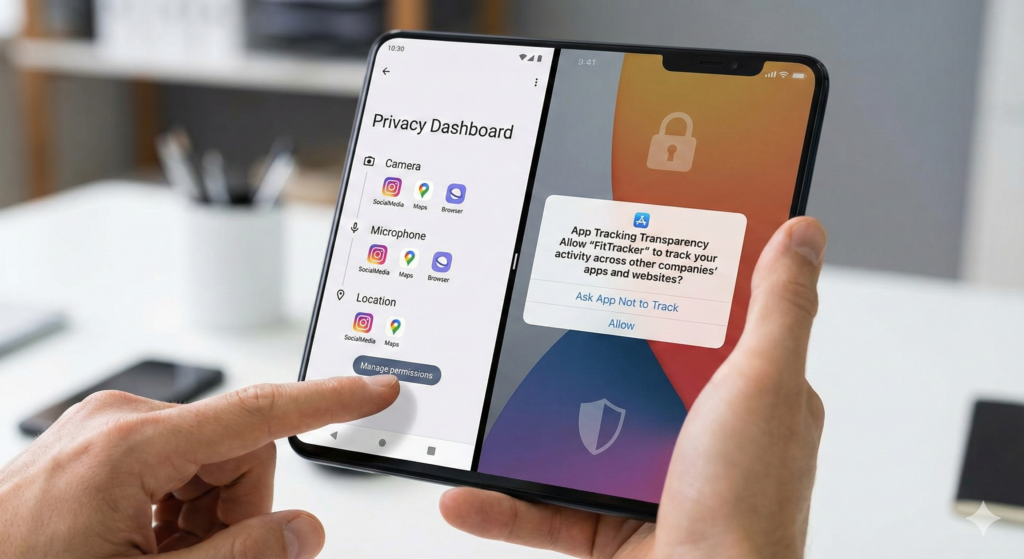
Introduction: Why Online Privacy Matters Online privacy is no longer optional. Every website visit, online purchase, and social media interaction generates data. That data can be used for personalization — or exploited if security is weak. Major platforms like Google and Meta operate data-driven ecosystems. While their services power modern communication and business, individuals must actively secure their personal information. In real-world cybersecurity cases, the majority of breaches happen due to weak user security habits — not sophisticated hacking. This guide provides practical, step-by-step strategies to protect your privacy online. Step 1: Create Strong and Unique Passwords Passwords are your first defense layer. Reusing the same password across websites is one of the biggest security mistakes. Real Experience Insight In multiple breach investigations, attackers used leaked passwords from one compromised website to access users’ email, banking, and social media accounts because the same password was reused. Best Practices Use 12–16+ characters Combine uppercase, lowercase, numbers, symbols Avoid personal information Never reuse passwords Use a Password Manager Reliable tools like: 1Password Bitwarden store encrypted passwords and generate strong credentials. Step 2: Enable Two-Factor Authentication (2FA) Two-Factor Authentication adds an extra verification step beyond passwords. Recommended apps: Google Authenticator Authy App-based verification is safer than SMS due to SIM-swap risks. Step 3: Secure Your Internet Connection Avoid Public Wi-Fi Risks Public networks can expose you to data interception attacks. Real-World Scenario Attackers sometimes create fake Wi-Fi hotspots in public areas. Users unknowingly connect and expose sensitive data. Use a VPN Trusted VPN providers include: NordVPN ExpressVPN A VPN encrypts internet traffic and hides your IP address. Step 4: Lock Down Social Media Privacy Settings Social platforms collect behavioral data. On Facebook: Limit profile visibility Disable public indexing On Instagram: Set account to private Disable location sharing Regular privacy audits reduce risk exposure. Step 5: Keep Software Updated Outdated software is one of the most common security vulnerabilities. Always update: Operating systems Browsers Mobile apps Security patches fix known exploits. Step 6: Use Privacy-Focused Browsers and Extensions Recommended browsers: Mozilla Firefox Brave Recommended extensions: uBlock Origin Privacy Badger These tools block trackers and malicious ads. Step 7: Monitor for Data Breaches Use: Have I Been Pwned If exposed: Change passwords Enable 2FA Monitor accounts Early response limits damage. Step 8: Encrypt Sensitive Data Encryption protects files even if devices are stolen. Enable: Full-disk encryption Encrypted backups Modern operating systems support built-in encryption tools. Step 9: Recognize Phishing Attempts Phishing emails often use urgent language and fake links. Warning signs: Misspelled domains Unexpected attachments Threatening messages Always verify URLs manually. Step 10: Limit Data Sharing Many apps request excessive permissions. Review: Camera Microphone Location Contacts Delete unused apps to reduce exposure. Frequently Asked Questions (FAQ) 1. What is the first step to protect online privacy? Start with strong passwords and enable two-factor authentication. 2. Is incognito mode private? No. It only hides local browsing history, not activity from websites or ISPs. 3. Are VPNs necessary for home users? They add encryption and IP masking, especially useful on public networks. 4. How often should privacy settings be reviewed? At least every three to six months. 5. Can social media track activity outside apps? Yes, via tracking pixels and cookies. Final Thoughts Online privacy is about proactive risk management. Small, consistent actions significantly reduce your exposure to cyber threats.

How to Protect Your Privacy Online: A Complete Step-by-Step Guide Read Post »

best smartphone accessories

Best Smartphone Accessories for Power Users (2026 Complete Guide)

Smartphones have evolved into primary productivity machines. Devices like the Samsung Galaxy S25 Ultra and iPhone 17 Pro Max now rival laptops in performance, camera technology, and multitasking capabilities. However, real-world performance depends heavily on accessories. After testing multiple mobile workflows—including gaming sessions, content production, business management, and travel productivity—I’ve learned that accessories are not optional upgrades; they are performance infrastructure. Who Is a Smartphone Power User? A power user typically: Uses the device 6–10+ hours daily Records 4K video Plays high-performance games Runs multiple apps simultaneously Uses hotspot frequently Manages business via mobile Heavy use stresses battery, storage, and thermal systems. Step 1: Upgrade to a 65W–100W GaN Fast Charger Fast charging reduces downtime significantly. GaN chargers are smaller, more efficient, and generate less heat. What to Look For: USB-C PD 3.0 PPS support Multi-port output Safety certifications Real Experience Switching from a basic charger to a 65W GaN charger reduced charging interruptions during busy schedules. Even short 20–30 minute charging windows became meaningful. Step 2: Add a 20,000mAh Power Bank For travel or heavy usage days, wall charging alone is not enough. Ideal Specs: 20,000–30,000mAh 30W+ fast output USB-C input/output Digital battery display Real Experience During travel, power banks eliminated battery anxiety. Instead of searching for outlets, I could recharge fully while commuting. Step 3: Premium ANC Wireless Earbuds Audio clarity matters for meetings and travel productivity. Top-tier examples: Sony WF-1000XM5 AirPods Pro Why They Matter Clear calls Noise cancellation Long battery life Multipoint connectivity Real Experience Using strong ANC in cafés and airports drastically improved focus and call clarity. Step 4: Smartphone Cooling Fan (For Performance Stability) High-performance tasks increase internal heat, leading to throttling. Best For: Gaming Livestreaming 4K video recording Real Experience Extended gaming sessions previously caused frame drops after 20–30 minutes. A cooling fan stabilized performance noticeably. Step 5: Portable USB-C SSD for Creators Internal storage fills quickly when recording high-resolution video. Benefits: Faster file transfers Offline backup Professional workflow efficiency Real Experience Transferring large video files to portable SSD reduced editing workflow time significantly compared to cloud uploads. Step 6: Mobile Gimbal for Professional Video Stabilization improves content quality instantly. Ideal For: YouTube creators Travel vloggers Product reviewers Real Experience Handheld shooting always introduced micro-shakes. After switching to a gimbal, video smoothness improved dramatically. Step 7: Multi-Device Wireless Charging Station Users in ecosystems like Apple or Samsung benefit from consolidated charging. Advantages: Simultaneous charging Cleaner workspace Overnight convenience Real Experience Replacing multiple cables with a 3-in-1 station improved desk organization and daily routine. Step 8: Bluetooth Keyboard + Adjustable Stand This setup transforms a smartphone into a mobile workstation. Use Cases: Writing blog posts Editing spreadsheets Managing online stores Real Experience Typing on a touchscreen reduces efficiency. A Bluetooth keyboard significantly increased productivity speed. Step 9: Rugged Case & Screen Protection Heavy usage increases drop risk. Essential Features: Shock absorption Raised bezels Tempered glass Optional privacy screen Real Experience A single drop can interrupt workflow and incur repair costs. Durable protection prevents downtime. Buying Guide Checklist Before purchasing any accessory: Verify safety certification Confirm compatibility Check heat management Review warranty Read performance-focused reviews Frequently Asked Questions 1. Do fast chargers damage battery health? No. Certified PD chargers are safe. Heat, not charging speed alone, affects battery longevity. 2. Is a cooling fan necessary? Only for gamers, streamers, and heavy users. 3. How much power bank capacity is ideal? 20,000mAh is optimal for most power users. 4. Is wireless charging slower? Yes, slightly—but modern chargers have improved significantly. 5. Are third-party accessories safe? Yes, if certified and compatible. Final Thoughts Smartphone accessories are not luxury items for power users—they are performance multipliers. A well-optimized setup includes: 65W GaN charger 20,000mAh power bank Premium ANC earbuds Rugged case Portable SSD (if creator) Cooling solution (if gamer) With the right configuration, your smartphone becomes a reliable, high-performance mobile workstation.

Best Smartphone Accessories for Power Users (2026 Complete Guide) Read Post »

Scroll to Top